 Writer
Manual
Getting Started
Writer is a local-first markdown editor. On first launch you'll see an empty workspace.
Adding a Workspace
Click the folder icon in the sidebar and select any folder. Writer picks up the markdown files inside it and keeps them in sync.
Your Folder/
├── notes/
│   └── idea.md
├── draft.md
└── readme.md
New locations automatically include a Markdown Tutorial document to help you get oriented.
Creating Documents
Right-click in the sidebar or use the toolbar. Documents save as plain files on your computer — no special format, no lock-in.
Editor Layout
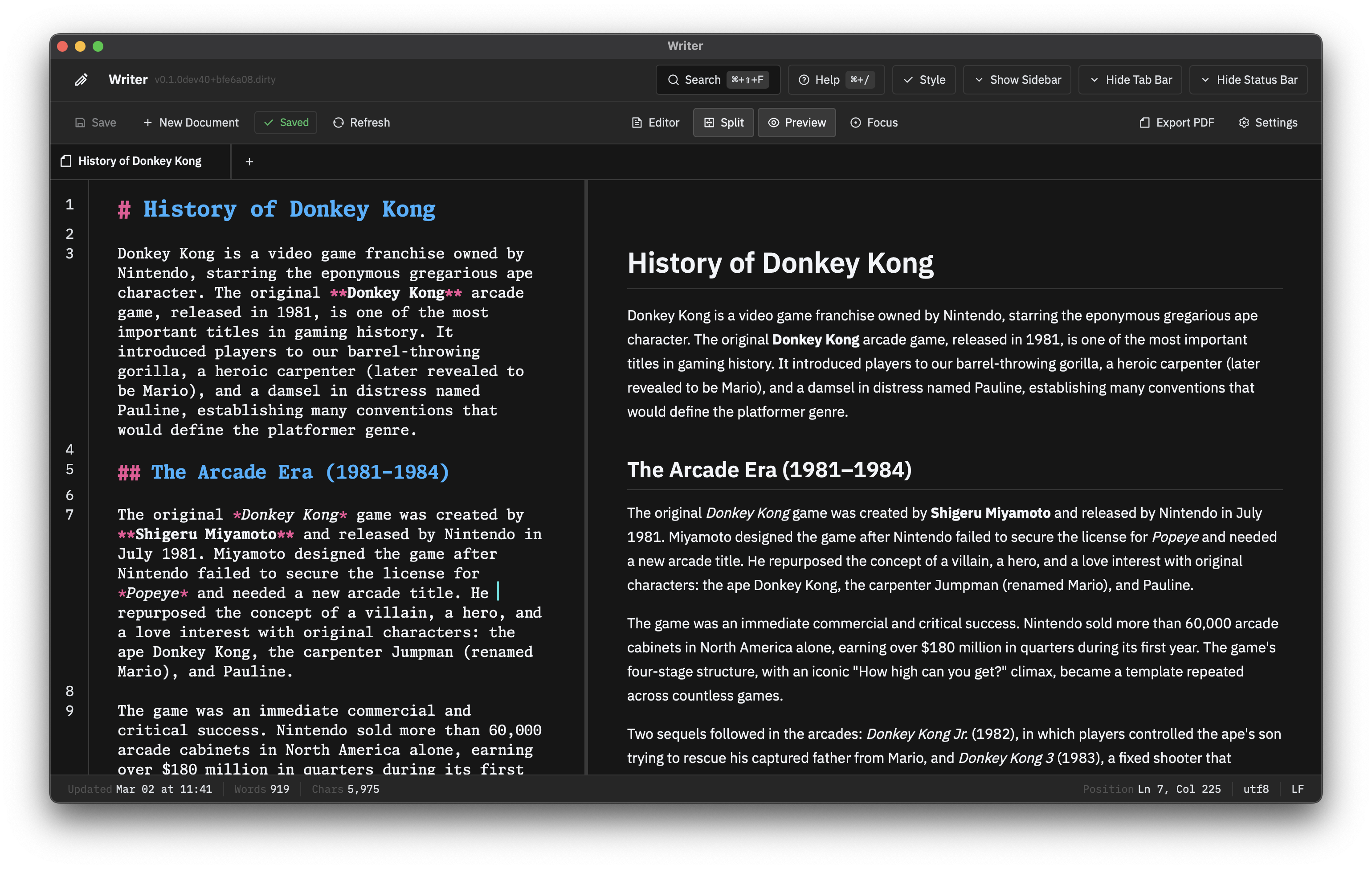
Three layout modes, switchable from the toolbar or keyboard shortcuts:
- Editor Only — Full-width markdown editing
- Preview Only — Rendered output
- Split Panes — Side-by-side editing and preview with a draggable divider
Focus Mode
Strips distractions so you stay in flow:
- Typewriter scrolling keeps the cursor centered
- Dimming fades surrounding text to the current section
- Style check decorations are hidden to keep the view clean
- A save indicator shows document state without breaking focus
Toggle from the View menu or with a keyboard shortcut.
Style Check
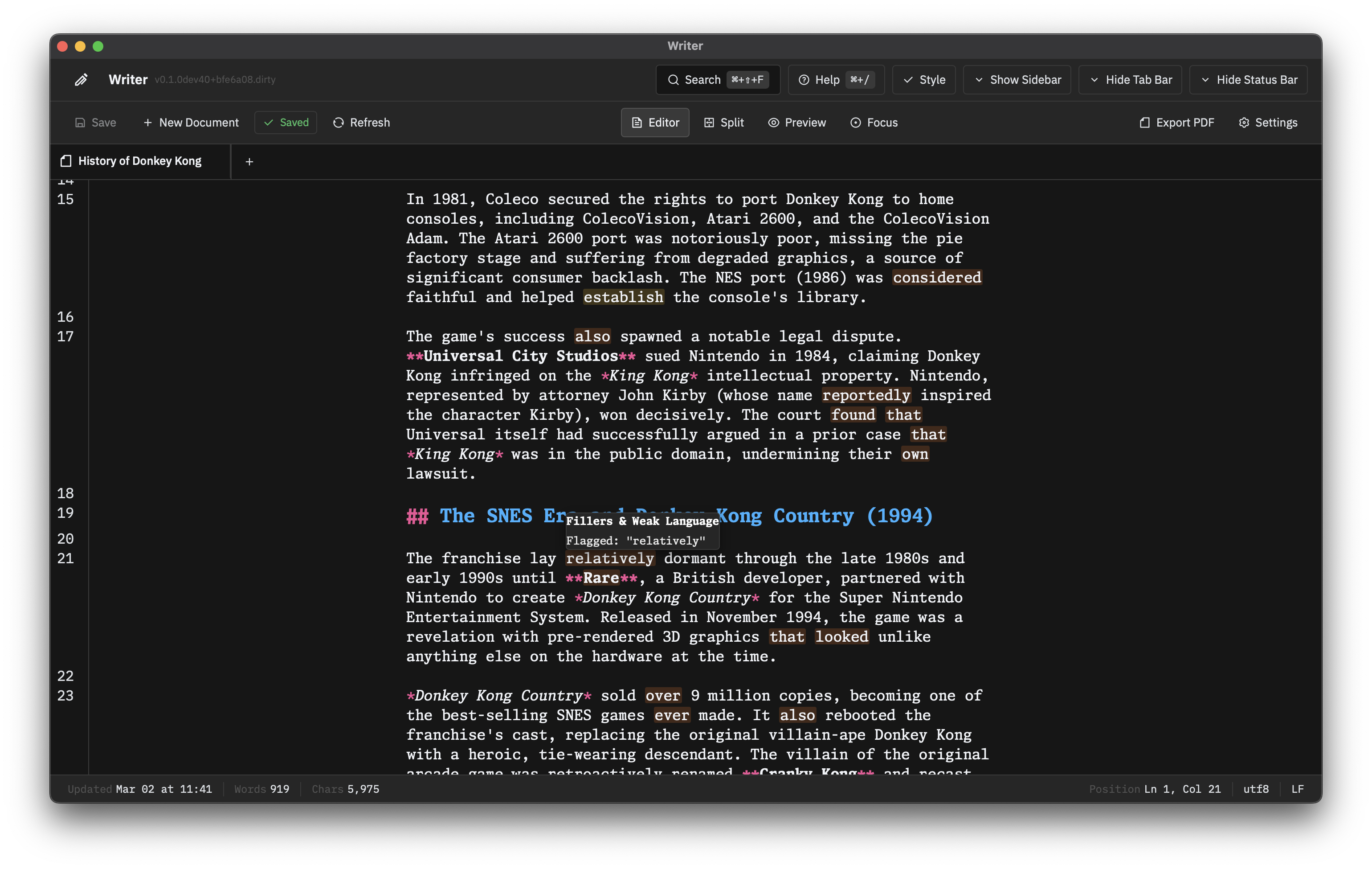
Writer flags potential style issues in real-time:
- Filler words — very, really, just, etc.
- Redundancies — "advance planning", "basic fundamentals"
- Clichés — Overused phrases worth reconsidering
Hover a highlight to see what was flagged. Add your own patterns in settings to enforce a house style. Turn it off entirely if it's not for you.
Quick Capture
Set a global hotkey in settings. The capture window opens from anywhere — no need to switch to Writer first.
Capture Modes
- Quick Note — Timestamped file in your inbox folder
- Append — Adds to an existing document
- Writing Session — Creates a note and opens it in the editor
Export
Open the document, go to File → Export, and pick a format:
- PDF — Configure page size, margins, fonts. Preview inline before exporting.
- DOCX — Word-compatible output.
- Plaintext — Raw text, formatting stripped.
Keyboard Shortcuts
| Shortcut | Action |
|---|---|
Cmd/Ctrl + N |
New document |
Cmd/Ctrl + O |
Open workspace folder |
Cmd/Ctrl + S |
Save (auto-saves by default) |
Cmd/Ctrl + F |
Find in document |
Cmd/Ctrl + \ |
Toggle sidebar |
Cmd/Ctrl + 1/2/3 |
Switch layout mode |
Cmd/Ctrl + Shift + C |
Quick capture |